What is FullSnapShot?
FullSnapShot is a free Chrome extension for capturing webpages, annotating screenshots, and exporting them as PNG, JPG, or PDF directly from your browser.
Is FullSnapShot really free?
Yes. All available capture, annotation, editing, history, and export features are free. There are no ads, subscriptions, locked premium tiers, hidden fees, or export watermarks. Donations are optional.
Do I need an account?
No account or sign-up is required to use FullSnapShot.
How do I capture an entire webpage?
Click the FullSnapShot icon in Chrome and choose Full Page Capture. The extension captures content beyond the visible viewport and opens the result in the editor. Very long or dynamically loaded pages may take longer to capture.
How do I capture only what's visible?
Open the extension popup and select Visible Viewport. This captures the portion of the page currently visible in your browser window.
How do I capture a custom area?
Open the popup and choose Custom Selection, then select the area of the webpage you want to capture.
What annotation tools are available?
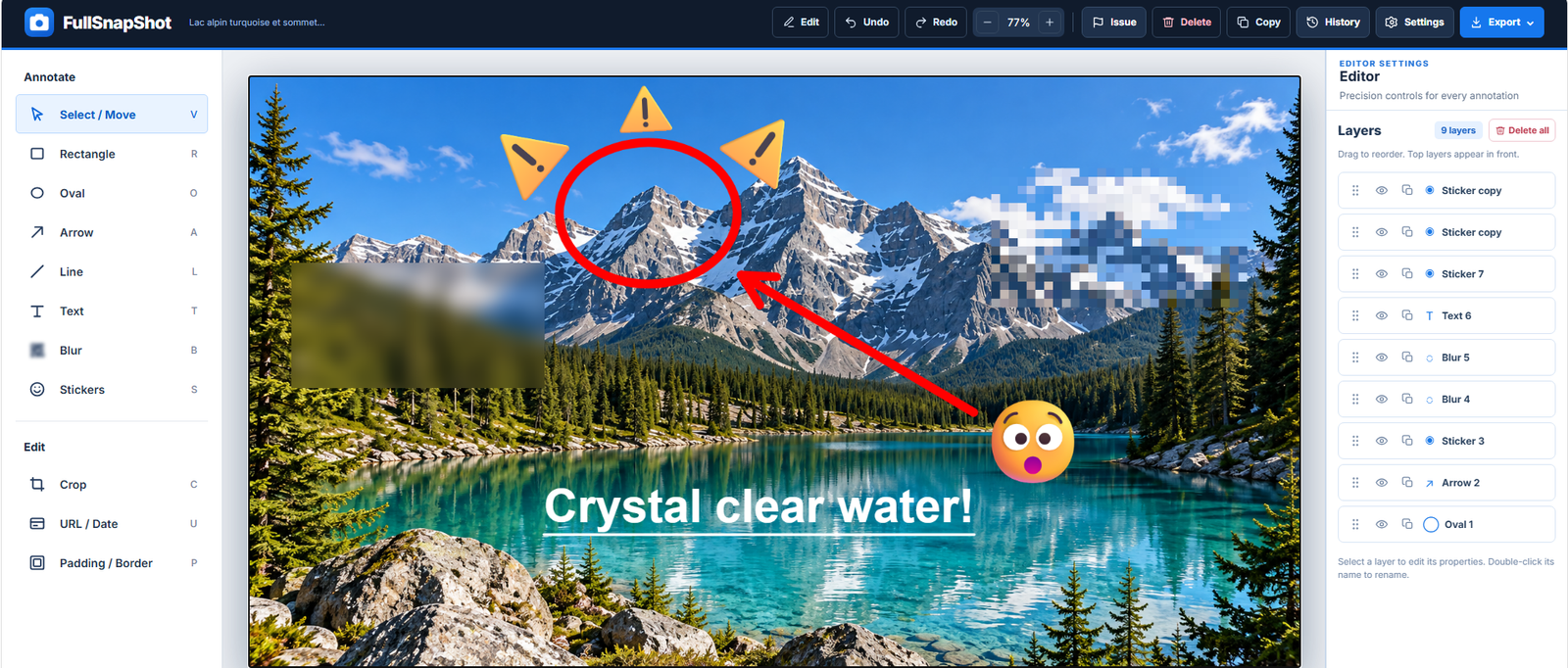
The editor includes Select / Move, Rectangle, Oval, Arrow, Line, Text, Blur, and Stickers. The Edit section also includes Crop, URL / Date, and Padding / Border.
How do I add text or draw arrows?
Choose Text or Arrow in the editor's left-hand Annotate toolbar, then place the annotation on the screenshot. Select an existing annotation to edit its supported properties.
How do blur and pixelation work?
Select Blur in the Annotate toolbar, choose the available blur or pixelation effect, and apply it over the part of the screenshot you want to obscure. Always check the final exported image before sharing sensitive content.
How do I add emoji stickers?
Choose Stickers from the Annotate toolbar, pick an emoji, and place it on the screenshot. Use Select / Move to reposition or adjust it afterward.
How does the Layers panel work?
Every annotation appears as an item in the Layers panel on the right side of the editor. Select a layer to work with that object. You can reorder layers to change which annotations appear in front, hide or show layers, rename them, duplicate them, and delete individual layers. The Delete all action removes all annotations, so use it carefully.
How do I reorder or hide a layer?
In the Layers panel, drag a layer to change its stacking order. Use the visibility control beside a layer to hide or show it without deleting it.
Can I duplicate, copy, and paste annotations?
Yes. Select an annotation, then press Ctrl+C to copy and Ctrl+V to paste (on macOS, Cmd+C and Cmd+V). These commands copy the selected annotation within the editor; they are not the same as copying the entire screenshot to the system clipboard. You can also duplicate an annotation using its Layers control.
What are the default editor keyboard shortcuts?
The default editor tool shortcuts are V Select / Move, R Rectangle, O Oval, A Arrow, L Line, T Text, B Blur, S Stickers, C Crop, U URL / Date, and P Padding / Border. These are editor shortcuts, not global Chrome shortcuts. They do not activate while you are typing in a text field.
Can I change or reset keyboard shortcuts?
Yes. Open Settings → Editor shortcuts, click the field for the tool you want to change, then press a letter, number, or function key (F1–F12). Press Escape to cancel, Backspace to clear an assignment, or Restore default shortcuts to reset all tools. Duplicate assignments are prevented.
Can I undo or redo edits?
Yes. Use the Undo and Redo buttons in the editor toolbar to step backward or forward through supported editing changes.
How do I crop a screenshot?
Select Crop in the editor's Edit section. Adjust the crop region and supported size or aspect-ratio controls, then apply the crop.
How do I export PNG, JPG, or PDF?
In the editor's top toolbar, click Export. The menu contains exactly three choices: Download PNG, Download JPG, and Download PDF. Choose the format you need. The Export dropdown does not contain PDF configuration controls.
Where are PDF export settings?
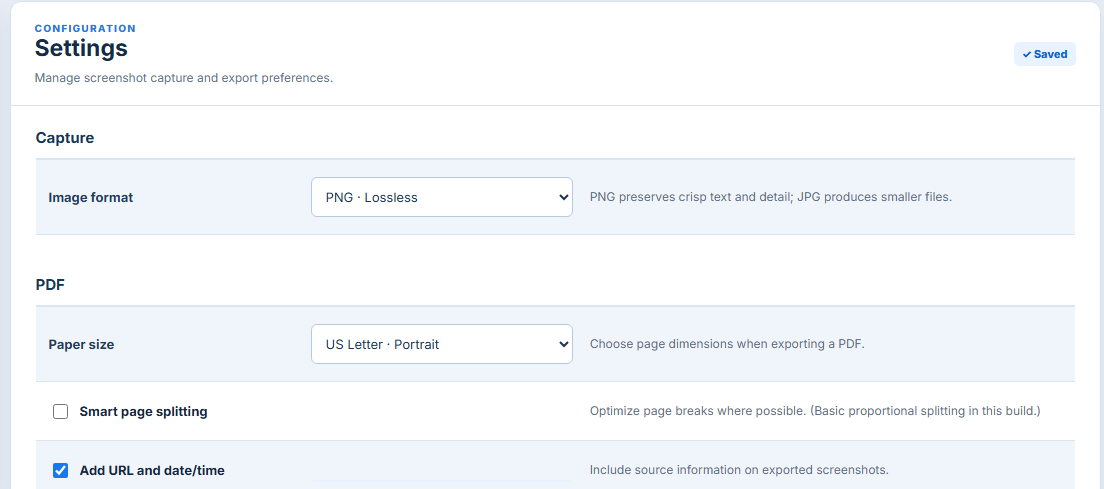
PDF preferences are in the separate Settings page, not the Export dropdown. Depending on your current version, you can configure paper size, smart page splitting, and inclusion of the source URL and date/time.
Can I export a long screenshot as a multi-page PDF?
Yes. FullSnapShot supports PDF export of long screenshots across multiple pages. In Settings, choose your preferred paper size and enable smart page splitting if you want the extension to optimize page breaks where possible.
Can I adjust JPG quality or image preferences?
Yes. Open Settings → Capture and set Image format to JPG · Compressed. The JPG quality slider then appears, allowing values from 1 to 100. Higher quality generally produces larger files; lower quality produces smaller files. Choose PNG · Lossless for crisp text and graphics.
Can I include the source URL and date?
Yes. The editor includes a URL / Date tool. There are also relevant metadata options in Settings for supported exports.
Where are my screenshots stored?
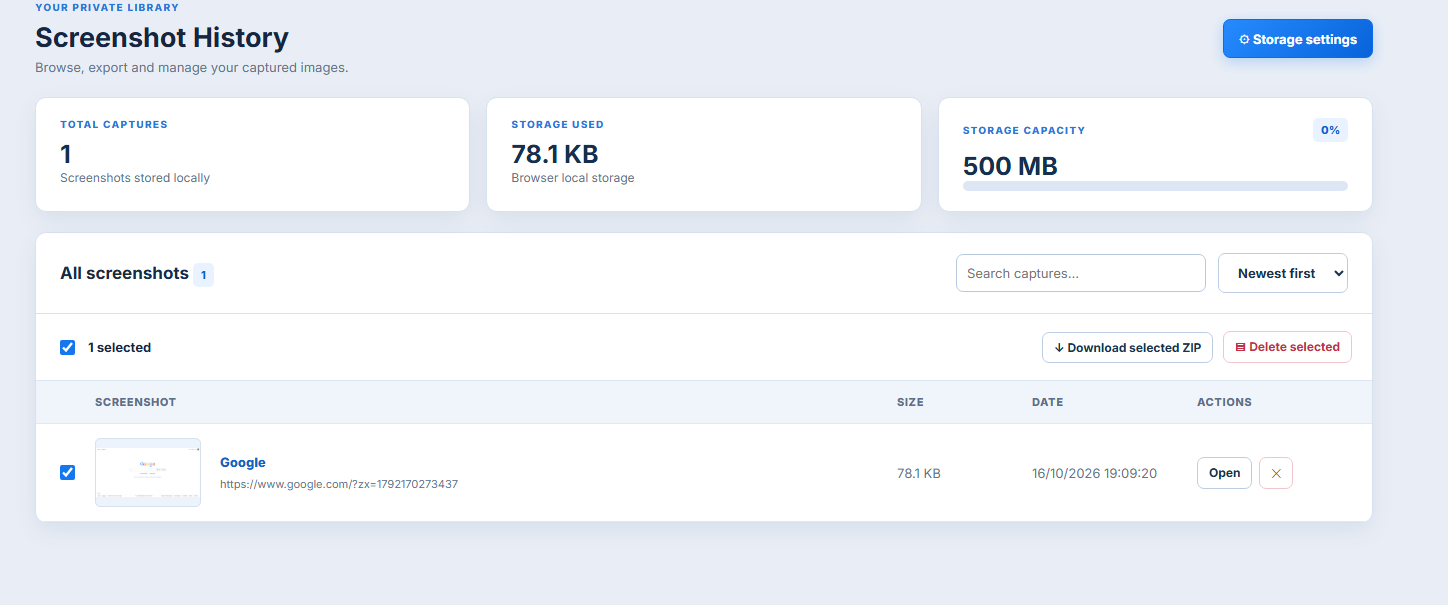
FullSnapShot keeps screenshot history and editable projects in local browser storage. Downloads are saved to your device through Chrome's download functionality. You can review and manage stored captures from History.
How do I reopen or delete saved screenshots?
Open History from the extension. Search or browse saved screenshots, choose Open to return to an existing capture, or use the delete controls to remove items. History also supports downloading selected captures.
Does FullSnapShot upload screenshots automatically?
The extension is designed for local screenshot editing and storage; screenshots are not automatically uploaded to an external server as part of its normal capture workflow. Downloaded files remain under your control. Review the published privacy policy for the complete data-handling disclosure.
Why does FullSnapShot request browser permissions?
Permissions such as activeTab and scripting support user-initiated webpage capture; storage and unlimitedStorage support local history and projects; downloads saves exports to your device. The optional tabs permission can support tab-related capture and metadata functionality.
Will it work on every website?
Most ordinary webpages can be captured, but Chrome restricts extensions on certain protected pages, browser-internal URLs, and some special content. Highly dynamic or unusually long webpages may also behave differently.
How can I get help or support development?
What is the difference between Ctrl+C / Ctrl+V and Copy in the toolbar?
Ctrl+C / Ctrl+V copy and paste a selected annotation inside the editor. The toolbar Copy action copies the screenshot image to your clipboard for use in other apps.
What are the undo and redo shortcuts?
Use Ctrl+Z to undo, Ctrl+Y or Ctrl+Shift+Z to redo. On macOS, use the corresponding Cmd combinations. The toolbar also has Undo and Redo buttons.
How do I delete an annotation with the keyboard?
Select an annotation and press Delete or Backspace. You can also use the Delete control in the editor or remove its layer from the Layers panel.
Can I use shortcuts while editing text?
Tool shortcuts are ignored when an input, text area, select field, or editable text control has focus. Finish or exit text editing before using a single-key tool shortcut.
How do I finish or cancel inline text editing?
When editing text directly on the canvas, press Ctrl+Enter (or Cmd+Enter) to confirm, or Escape to cancel the inline edit.
Are keyboard shortcuts global across Chrome?
No. Editor tool shortcuts operate while the FullSnapShot editor is focused. They do not replace Chrome keyboard shortcuts across other tabs.
Can two editor tools use the same shortcut?
No. The shortcut editor prevents duplicate key assignments to avoid conflicts.
What happens when I press Escape while changing a shortcut?
Escape cancels the shortcut recording without assigning that key. To remove an assignment, use Backspace in the shortcut field.
Can I assign F1 through F12 to a tool?
The shortcut settings accept function keys F1–F12 as well as letters and numbers. Browser or operating-system shortcuts may take priority for certain keys.
How do I move or resize an annotation?
Choose Select / Move, click the annotation, then drag it or use its supported handles and properties to adjust its position or dimensions.
Can I rotate shapes or text?
Supported annotation types provide editing controls such as position, size, and rotation where available. Select the annotation to see its applicable properties.
How do I change an annotation color or stroke?
Select the annotation to open its properties, then adjust available fill, outline, color, or line controls. Available properties depend on the annotation type.
Can I adjust line or arrow thickness?
Yes, where supported. Select the line or arrow and use the corresponding stroke controls in its properties panel.
Can I customize text formatting?
Yes. Text annotations support font and formatting controls, including supported size, color, and style settings. Select a text layer to modify it.
How do I choose between blur and pixelation?
Choose Blur, then select Blurry or Pixelated from the blur-effect control. Adjust the available strength setting and apply the effect to the intended region.
Does blur permanently hide sensitive information?
Blur and pixelation obscure the displayed pixels, but you should inspect the exported file before sharing it. For highly sensitive information, ensure the content cannot be inferred from context.
Can I rename a layer?
Yes. In the Layers panel, double-click the layer name to rename it.
How do I change which annotation is on top?
Drag the layer rows in the Layers panel. Layers higher in the list appear in front of layers below them.
Can I hide a layer without deleting it?
Yes. Use the eye/visibility control next to the layer. Hidden annotations remain in the project and can be shown again.
How do I duplicate a layer?
Use the duplicate control next to the layer in the Layers panel. You can also copy and paste the selected annotation using the keyboard.
What does Delete all do?
Delete all removes every annotation layer from the current screenshot. It is different from deleting the screenshot itself from History.
How do I edit an annotation from Layers?
Click its row in the Layers panel. The editor selects that annotation and shows its relevant settings.
What is the difference between Crop and Custom Selection?
Custom Selection chooses an area of a live webpage to capture. Crop trims an image that has already been captured and opened in the editor.
Can I enter exact crop dimensions?
The crop tool includes precision controls for adjusting the crop region and dimensions. Available controls depend on the editor state.
What does Padding / Border do?
It adds configurable space around the screenshot and a border, making exported images easier to present in documents and reports.
What does URL / Date do?
It adds source webpage and capture-time information to the image. PDF metadata preferences are configured separately in Settings.
Where is the JPG quality slider?
Go to Settings → Capture → Image format, choose JPG · Compressed, then adjust the JPG quality slider. The slider is not part of the editor’s three-item Export dropdown.
What JPG quality values are available?
The quality slider supports values from 1 to 100. A higher number retains more detail and usually increases file size.
Which format should I choose: PNG or JPG?
Choose PNG for sharp text, diagrams, and lossless screenshots. Choose JPG when smaller file size matters and some lossy compression is acceptable.
What PDF paper sizes are available?
Settings offers US Letter, US Legal, and A4 in portrait or landscape orientation, plus Full image.
What does Smart page splitting do?
It attempts to optimize page breaks when exporting long screenshots as PDFs. The current implementation uses basic proportional splitting rather than content-aware document reflow.
How do I include URL and date/time in a PDF?
Open Settings → PDF and enable Add URL and date/time. This is separate from the editor’s URL / Date annotation tool.
Can I choose a download folder?
Yes. Under Settings → Download → Directory, enter an optional subfolder within your browser’s Downloads folder.
Can Chrome ask where to save the file?
Enable Save as in Settings → Download to request a filename when saving supported images. Chrome’s own download settings may also affect prompts.
Can screenshots download automatically after capture?
Yes. Enable Auto-download files in Settings → Download to save a copy after capture while also opening the viewer.
What does Fit copies to Google Docs limits mean?
When enabled, clipboard copies exceeding 25 million pixels are resized to help fit Google Docs image limits.
How do I copy a complete screenshot to another app?
Use the editor’s Copy action to copy the screenshot image to the clipboard, then paste it into a compatible application. This differs from Ctrl+C on a selected annotation.
Can I export several screenshots from History?
Yes. Select multiple screenshots in History and use the bulk download options. Supported choices include image files and ZIP archives.
Can I export History screenshots as a ZIP?
Yes. History includes bulk export options for selected screenshots, including ZIP archives.
Can I search or sort screenshot History?
Yes. History includes a search field and sorting controls to help locate saved captures.
How do I manage local screenshot storage?
Open History to review captures and storage usage. Use its storage settings and deletion controls to manage saved items.
Are annotations saved when I reopen a screenshot?
FullSnapShot supports local editable projects and reopening saved captures. Exact restoration depends on the project data retained for that capture.
Can I capture browser internal pages?
Chrome restricts extension access to some internal, protected, and Chrome Web Store pages. Capturing those pages may not be possible.
Why might a full-page capture look different from the live page?
Sticky headers, animations, lazy-loaded content, dynamic page changes, and complex scrolling layouts can affect full-page stitching. Retry after content finishes loading if necessary.
What is the Rate Us button for?
The Rate Us button is intended for the Chrome Web Store listing. It may be inactive until the listing link is configured.
Is Support Us required to unlock anything?
No. Support Us is an optional donation link. Donations do not unlock features because all available tools are already free.
Where can I get support?
Use the support link provided on the website or contact hello.t6digital@gmail.com.
Can I turn off optional browser permissions?
The Settings → Permissions section allows supported optional permissions to be managed. Core permissions needed for capture are controlled through Chrome extension management.
Does FullSnapShot require an internet connection for editing?
The extension performs its normal screenshot editing locally. Capturing a webpage requires that the webpage itself be available; the editor does not require an account.
No matching questions. Try another keyword.

 Add to Chrome